What is a fake FLAC?
A fake FLAC — often called a transcode or an upscale — is a file that genuinely is in FLAC format, but whose audio came from a lossy source like MP3 or AAC. Someone took a 320 kbps MP3, opened it in a converter, and saved it again as FLAC.
The result is technically legitimate. FLAC really is lossless compression, so it stores exactly what it was given. The problem is that what it was given had already been damaged.
An analogy: you photograph a painting with a phone camera, then print it on gallery-grade paper at one metre wide. The paper is expensive, the print is flawless, the size is impressive. But the detail lost at the moment of photographing does not return because the paper is good. Information that has been thrown away cannot be found again.
Why this happens
Most fake FLACs were not made to deceive. Someone downloaded MP3s years ago, later wanted a tidy all-lossless collection, and converted whole folders without realising that conversion restores nothing. Those files then get shared, copied again, and after a few hands nobody knows where they came from.
A small share is deliberate, usually on file-sharing sites that value lossless collections more highly. But intent does not matter to your ears: the result is identical.
First sign: the frequency spectrum
This is the most reliable method, and the reason makes sense once you see it.
MP3 and AAC encoders work by discarding information judged inaudible to humans. One of the first things discarded is very high frequencies. A 320 kbps MP3 usually cuts everything above roughly 20 kHz. A 128 kbps MP3 cuts far lower, around 16 kHz.
That cut leaves a highly distinctive trace: a hard horizontal line across the spectrum, with perfectly empty space above it. Real recordings never look like that — their high-frequency energy decays gradually up to the ceiling, not sliced flat as if by a knife.
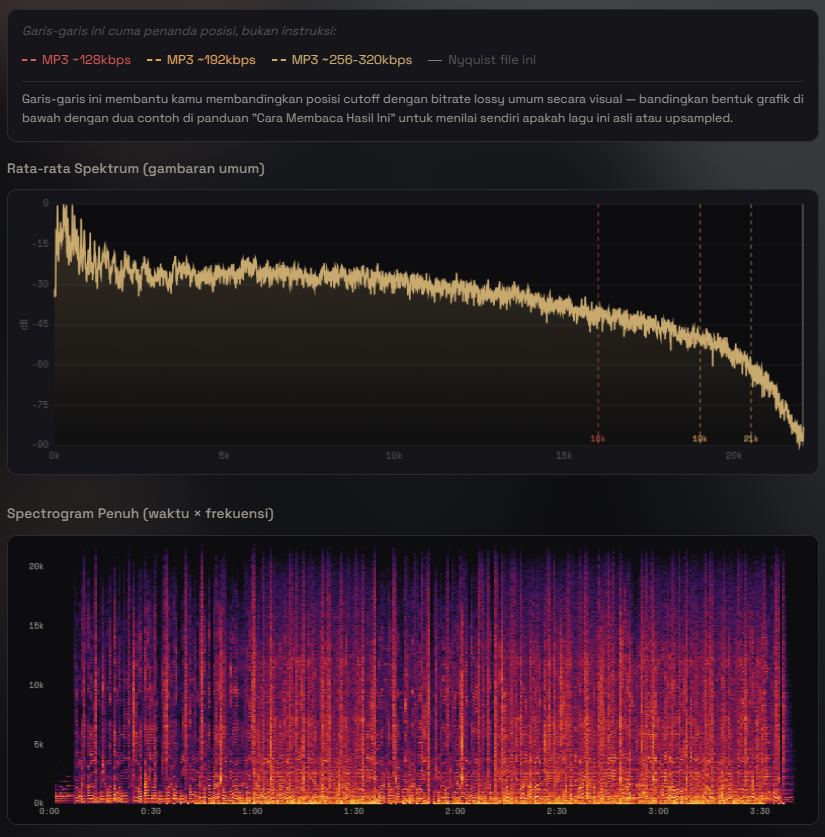
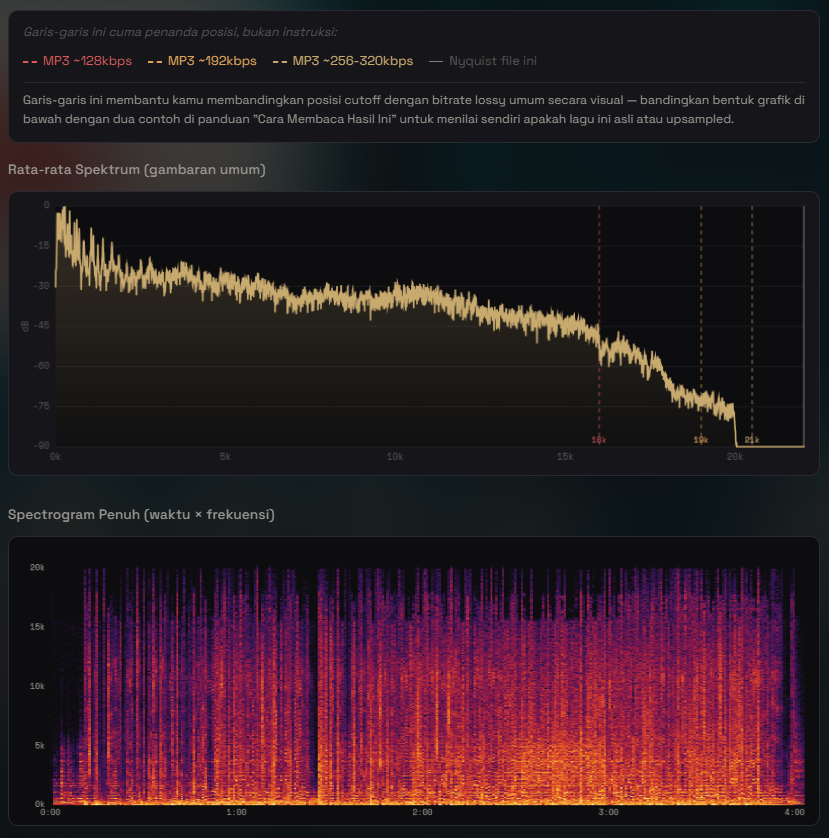
To see the spectrum yourself, use Spek (free, cross-platform), Audacity via Analyze → Plot Spectrum, or foobar2000 with the Spectrogram component. All three show the same thing.
One important warning about spectrums
A cut line does not always mean fake, and this is where people most often accuse wrongly.
Older recordings mastered from analogue tape sometimes genuinely have no energy above 16 kHz, because the equipment of the era did not capture it. Some acoustic instruments barely produce frequencies that high. And some modern mastering deliberately trims the top end.
The difference is in how clean the cut is. A lossy encoder cut is very neat and straight: an algorithm drew it. The natural ceiling of an old recording decays unevenly, raggedly, and differs from track to track. If ten songs on one album share a cut line at exactly the same figure, that is not a coincidence.
Second sign: a file size that does not add up
Real FLAC from a CD (16 bit, 44.1 kHz) usually lands between 700 and 1,000 kbps, depending on how dense the music is. A wall-of-sound metal track sits near the top; a spacious solo piano recording can be well below.
If you find a FLAC at 400 kbps, that is suspicious. Not because FLAC cannot go that low, but because music producing a bitrate that low is usually very sparse. Conversely, FLAC transcoded from MP3 is often larger than it should be, because lossy compression artefacts are hard to compress again.
Size alone proves nothing. But when the size is odd and the spectrum is suspicious, the two reinforce each other.
Third sign: metadata that leaves a trail
This is the one most often overlooked, even though it is the easiest to check.
Conversion tools frequently leave marks in the file tags. You may find an encoder field reading "LAME3.100" on a file claiming to be FLAC — LAME is an MP3 encoder, and there is no reason for its name to appear in a genuinely lossless file. Sometimes a leftover comment says "Converted by" followed by an application name.
A subtler trail: FLAC ripped directly from CD usually has tidy metadata that is consistent across the album — sequential track numbers, the same year, a uniform album artist. Files that have passed through many hands via conversion tend to have messy metadata, mixed languages, or nothing at all.
Fourth sign: implausible sample rate and bit depth
If you find a file claiming 24 bit / 96 kHz that actually came from a CD, that is an upscale — another variation on the same problem.
Raising the sample rate adds no information. It only calculates values between points that already exist, like enlarging a photo: more pixels, no more detail. The result is a file three times larger containing exactly the same information.
The clue is again in the spectrum: a genuine 96 kHz file has real energy above 22 kHz. An upscale from CD is completely empty above 22 kHz, because there was never anything there to fill it with.
How EarTea helps
EarTea does not analyse spectrums — Spek or Audacity remain the right tools for that. What EarTea does is read the technical details of every file in your collection and show them side by side, so odd patterns become visible without opening files one at a time.
When you scan a folder, EarTea reads each file's actual sample rate and bit depth, then marks genuinely Hi-Res files with a badge. A file that claims Hi-Res through its folder name but turns out to be 16 bit / 44.1 kHz gets no badge — enough to make you suspicious and look closer.
EarTea also cleans up metadata from MusicBrainz, so the conversion trails mentioned above — a misplaced encoder name, leftover converter comments — become easy to spot before they are replaced with correct data.
The whole process runs inside your browser. Your music files are never uploaded anywhere.
Try it yourself: open EarTea, pick your music folder, and see how many files genuinely earn the Hi-Res badge.
Open EarTeaIn short
No single sign settles it alone. What convinces is several signs reinforcing each other: a spectrum with a hard cut at the same figure across a whole album, plus metadata naming a lossy encoder, plus a size that does not match the character of the music.
And one thing to accept: once a file is fake, there is no fixing it. What a lossy encoder discarded is gone for good. The only path is finding a proper source. What you can do is recognise it early, so you do not spend storage on files that are no better than the MP3s they came from.